
account
Changing your email, phone number and account details
Account details are split between Profile and Security. You save your username, display name, country and photo yourself, email and phone change only after a six-digit code is verified, and the legal name is corrected through a support ticket.
Your account details sit on two pages on purpose. Everything you can save yourself (username, display name, country and photo) lives on Profile. Email and phone live on another page, because changing either one only takes effect after a six-digit code is verified. And one field cannot be changed from the panel at all: your legal name.
Where each detail actually changes
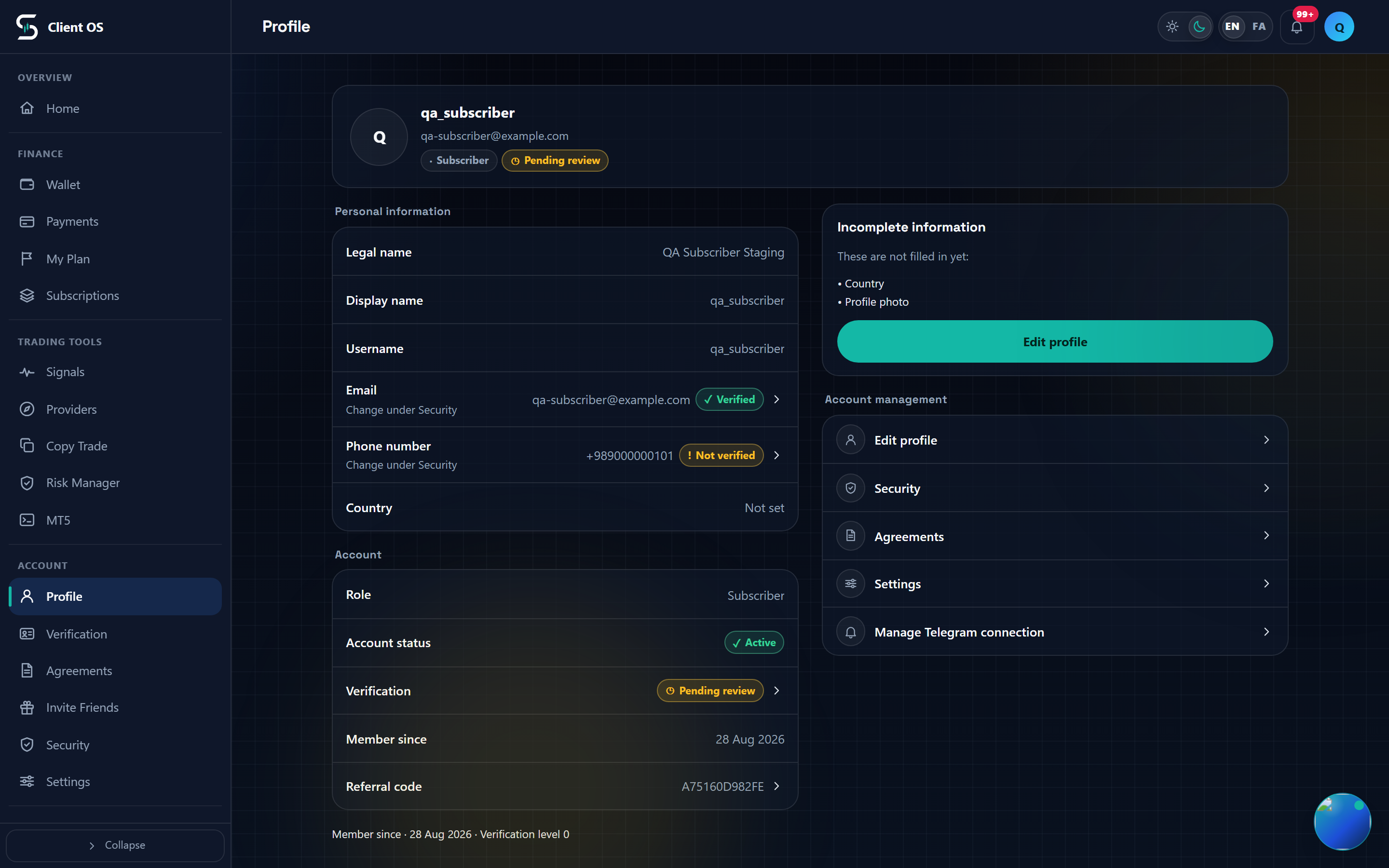
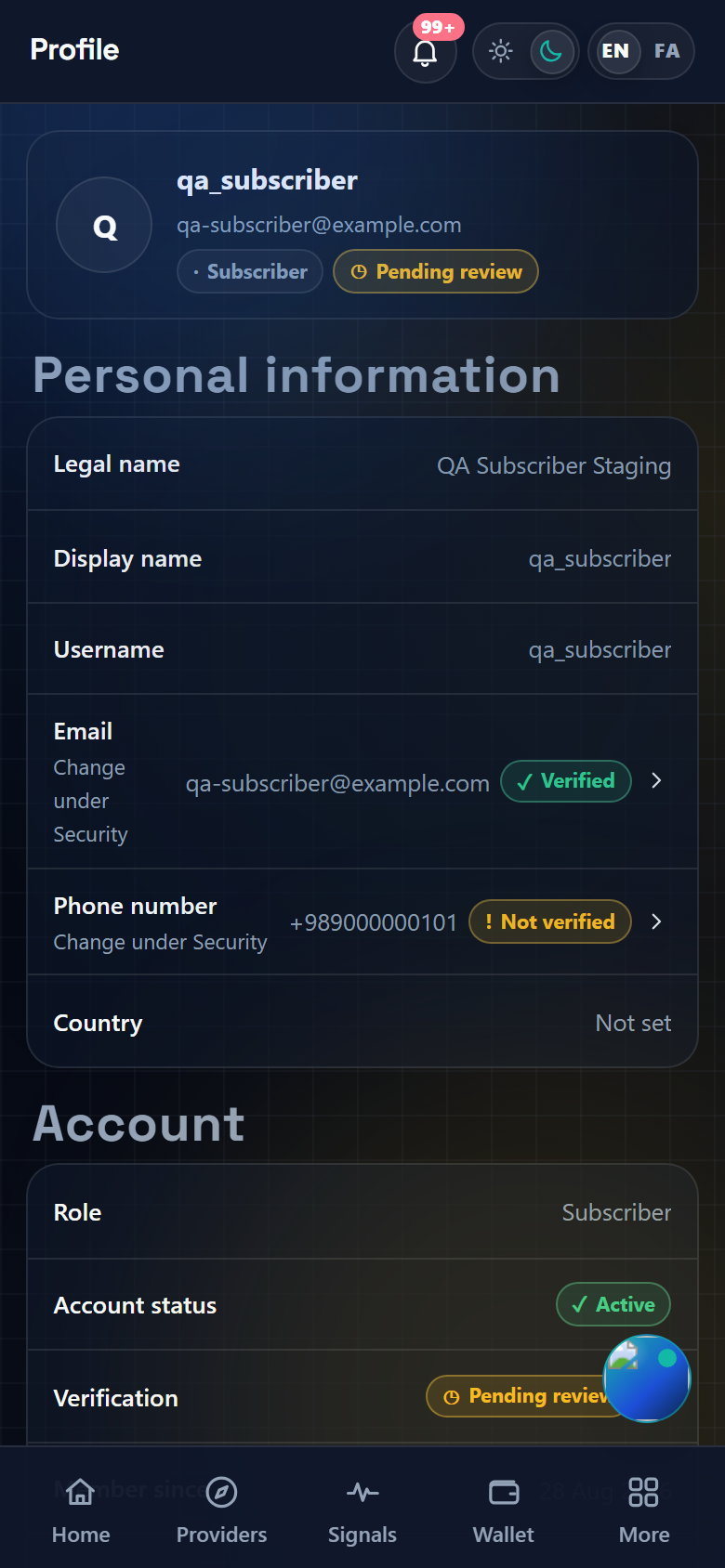
Open Profile from the Account group in the menu. Personal information lists six rows: Legal name, Display name, Username, Email, Phone number and Country. The Email and Phone number rows carry the note Change under Security and take you to the Security page, but that page opens at the top with the change card closed, so you still have to open the row yourself once you get there. Legal name is shown as a plain value with no control beside it.
The fields you save yourself
Tap Edit profile. In the Profile photo card, Add photo (or Change photo if you already have one) uploads the file, but the account keeps its old picture until you press Save. Personal information holds Username, Display name and the Country dropdown, and provider accounts also get a Provider profile card. Save stays disabled until something has actually changed.
- Username: 3 to 40 characters, only lowercase letters, digits and underscore, it must be unique, and whatever you type is stored lowercased
- Display name: 2 to 100 characters
- Profile photo: JPG, PNG or WEBP only, up to 5 MB
Email and phone live under Security
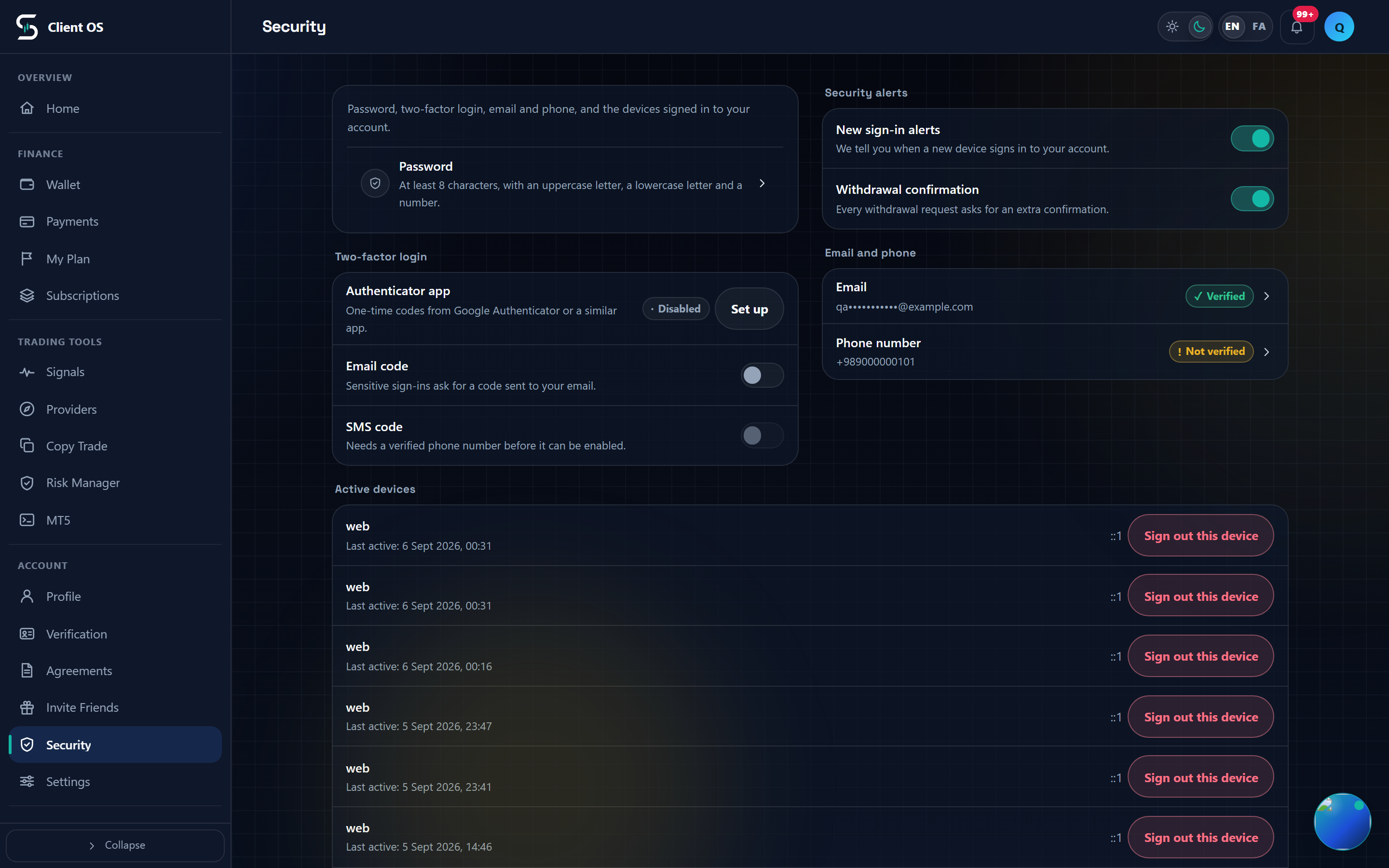
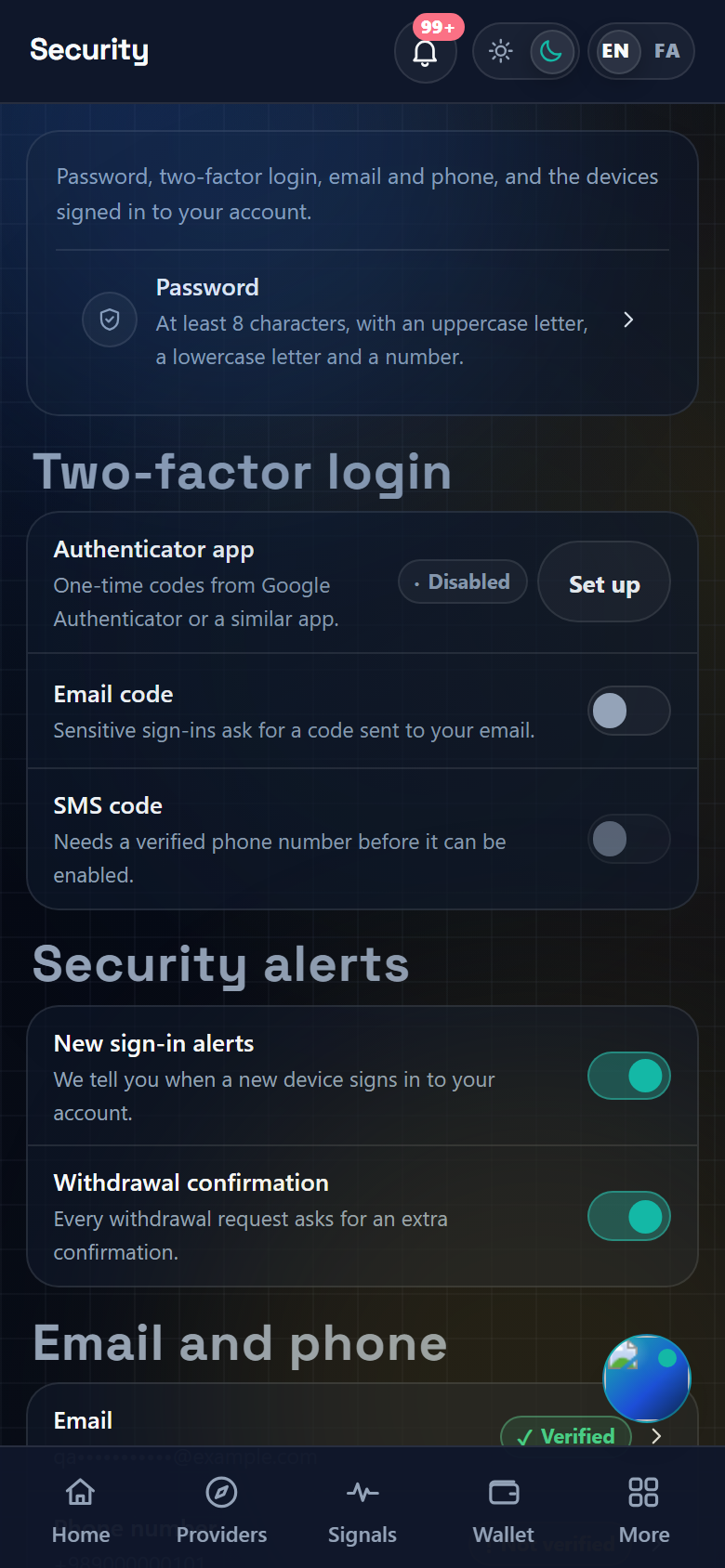
On the Security page, find the Email and phone section. Your email is shown masked with a Verified or Not verified chip, and the phone row reads Not set if you never added one. Tap the row to open the Change email or Change phone number card; until you do, neither the address field nor the Send verification code button exists. This is also the page where you change your password, and changing it signs out every session on the account, this device included.
Changing the email with a six-digit code
Type the new address into New email and press Send verification code. The code goes to the new address, not to your current one. The Six-digit email code field then appears; enter the code and press Verify new email to see Email changed and verified. The new address must differ from your current one and must not already belong to another account. There is no Resend button: if the code does not arrive, press Cancel, go back to the address field and press Send verification code again. Each request expires 24 hours after it was created, and your old email stays in place until a correct code is accepted.
Changing the phone number
Open the Phone number row and type the number into New phone number: digits only, an optional leading +, no zero as the first digit of the country code, and 10 to 15 digits in total. Press Send verification code, enter the Six-digit SMS code and press Verify new number to see Phone number changed and verified. The number is not a sign-in identifier; as the card itself says, a verified number is used for security alerts and SMS codes.
Legal name, and anything without a control
Your legal name is recorded when you register and has no edit control anywhere in the panel; only support staff can correct it. Go to Tickets, press New ticket, write a short Subject, set Category to Account, describe the correction in Description, use Add file to attach a document that proves the name if you have one, and press Send ticket.
Where to check the result
Open Verification. Under What is required, the Email and Phone number rows now read Verified. The code you entered was the verification, so nothing has to be re-submitted, and your identity documents and agreements are untouched. Back on Security, the SMS code toggle under Two-factor login can only be switched on once you have a verified phone number.