
notifications
Notifications: channels, events and how to manage them
Sigrah handles notifications across two pages: the Notifications inbox and the Notification channels page. This guide walks both, shows how to switch channels and individual events off, and covers connecting Telegram.
Sigrah keeps notifications on two pages: Notifications, which is your inbox, and Notification channels, which decides how each item reaches you. The in-panel inbox is always on; every other channel is yours to set. This guide walks both pages in order and names the real limits where you would meet them.
Open the notification inbox
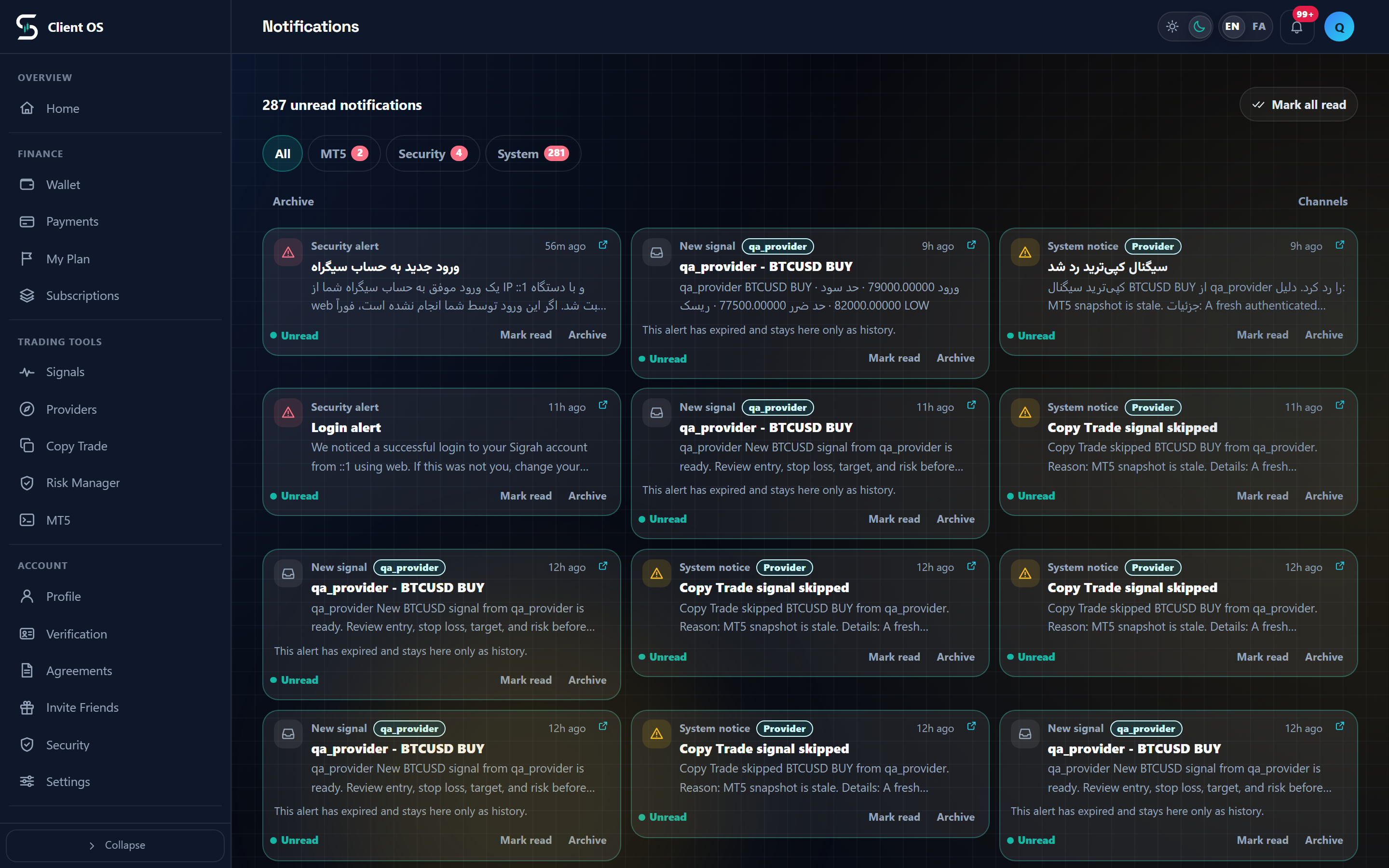
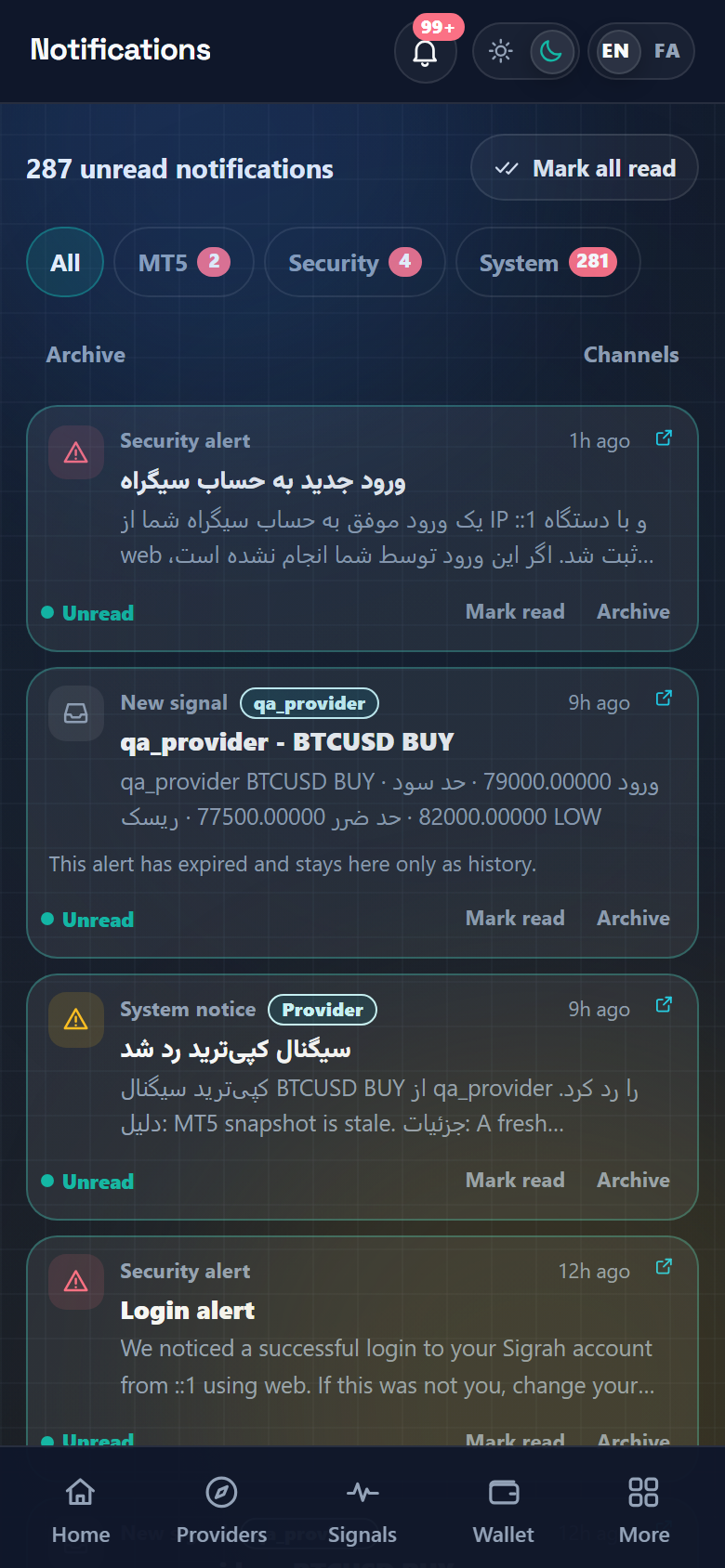
Choose Notifications in the panel sidebar. The unread count sits at the top, either One unread notification or 3 unread notifications, with Mark all read beside it. Once nothing is left unread it reads Everything here has been read instead. The list hides archived and expired items, and More notifications at the bottom loads the next page.
Filter by category or channel, and act on a row
The tab strip starts with All, then shows only the categories your account has actually received something in: Signals, Finance, Plan, MT5, Security, Support and System. A new account sees just the All tab, so a short strip is not a fault. If you have received on more than one channel, a dropdown with an All channels option appears in the same bar. Tap a notification to expand it with Full message; every row carries Mark read (or Mark unread) and Archive. The Archive button at the top switches the whole list to the archive, and Back to inbox returns you.
Switch a channel on or off
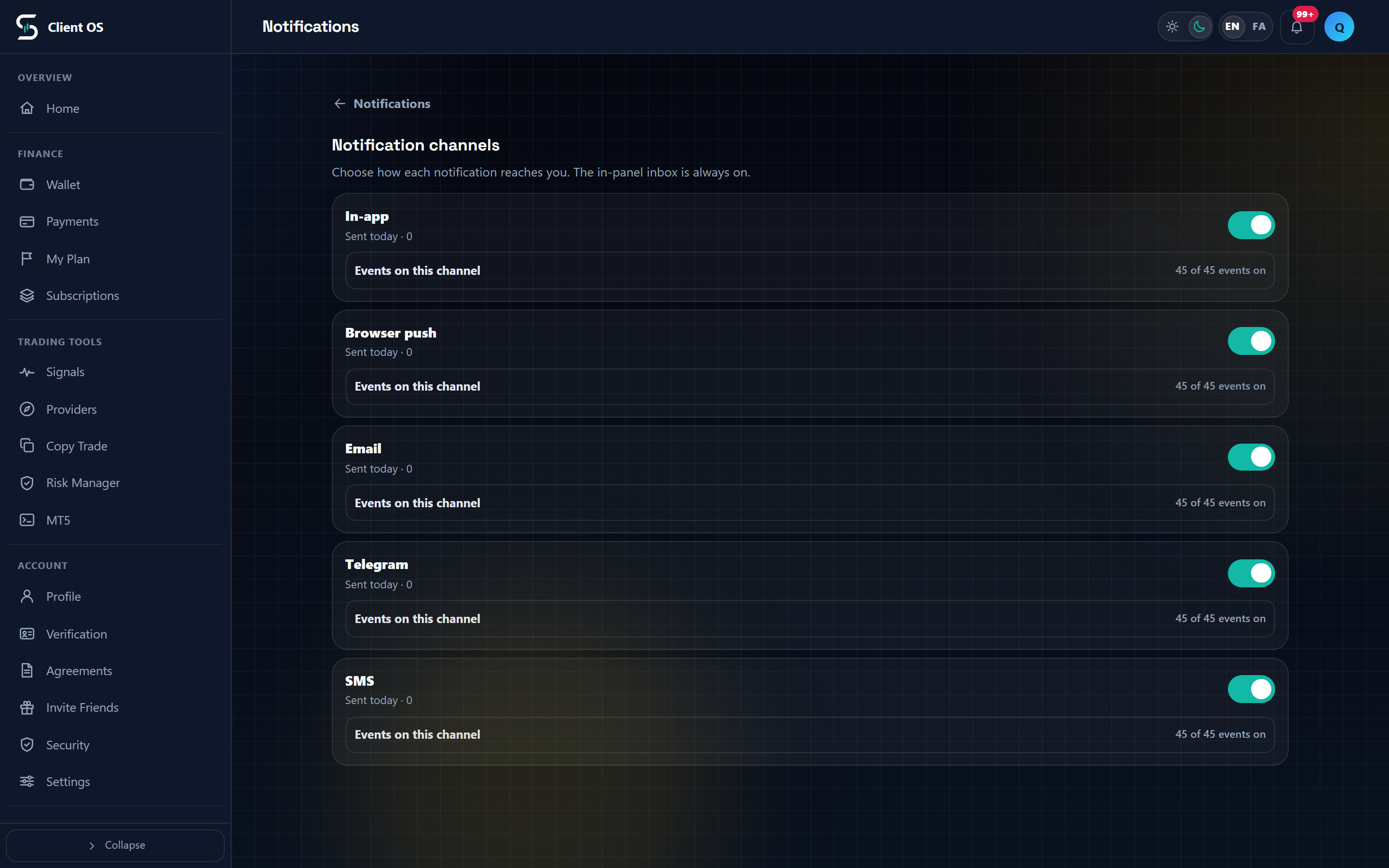
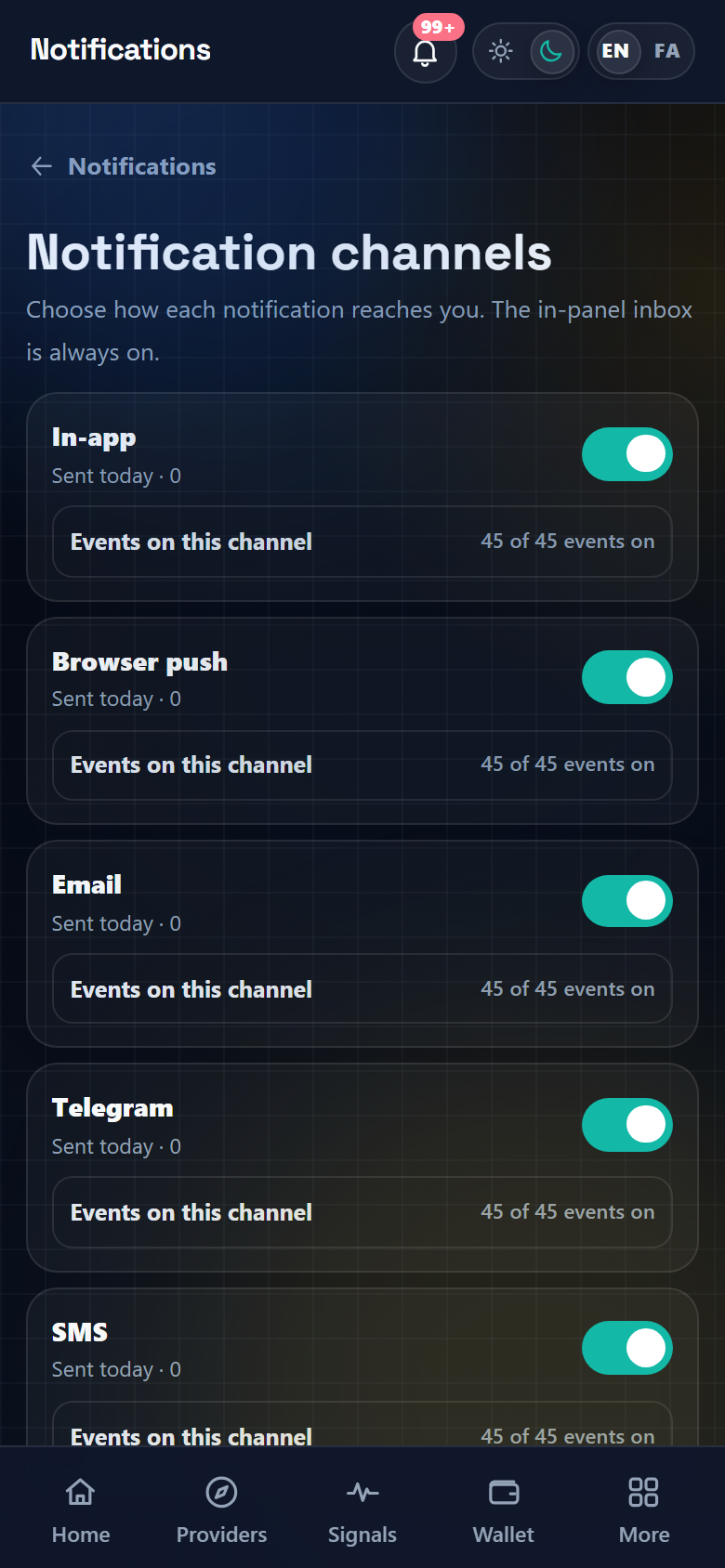
Under that bar is a Channels link. It opens Notification channels, headed by the line: Choose how each notification reaches you. The in-panel inbox is always on. You get one card per channel: In-app, Browser push, Email, Telegram and SMS. Each card shows Sent today with the number already delivered on it, and a switch that saves the instant you tap it. There is no Save button, and every channel stays on until you turn it off. Sent today is counted against a UTC day, so the counter resets at 03:30 Tehran time rather than at your local midnight. The Notifications link at the top takes you back to the inbox.
Pick which events a channel carries
Open Events on this channel on any card. It expands to a counter such as 12 of 45 events on, followed by the full list of 45 events grouped under the same categories as the inbox tabs: New signal, Trade executed, Payment confirmed, Security alert and the rest. Tap a chip to switch that event off for that channel alone; the other channels are untouched. The hint below the list reads An event you switch off will not be sent through this channel.
Connect Telegram in Settings
Turning the Telegram switch on is not enough; the channel needs a linked chat. Go to Settings, to the Telegram connection card (Profile carries a Manage Telegram connection shortcut). First type your public handle into Telegram username and press Save username: 5 to 32 English letters, numbers or underscores. Generate connection link stays disabled until what is in the field exactly matches what was saved. Then press Generate connection link to get a One-time command with a Valid until line. That command is good for 10 minutes, and generating a new one kills the previous one immediately. Press Open the Telegram bot, or send the command to the bot in a private chat. The status moves from Not connected to Waiting for Telegram and then Connected; Refresh status re-checks it, and Disconnect, which shows only once you are connected, unlinks the chat. If you see the This code has expired. Generate a new one. message, just make another. But if that Telegram chat is already linked to a different Sigrah account, or an admin has the Telegram channel switched off or the bot is not configured, the link cannot complete, and none of that is something you can fix yourself.
Allow alerts on this device
When a new notification arrives, a live popup appears in the corner of the panel with Open, Go to notifications and Mark read. The first time, that popup also offers Alerts on this device. That button, and only that button, asks the browser for permission, so you still get an alert while you are on another page; nothing prompts you unasked. The popup never appears on the notifications or tickets pages themselves. The Browser push switch on the channels page records your preference only: the panel ships no control that registers your browser for push, so device alerts come from that button, not from that switch.
What happens next
Every change to a channel or an event saves immediately and applies to the next notification. To check the result, come back to Notification channels and read the Sent today counter on each card, and read the messages themselves in the Notifications inbox. Two honest limits worth knowing: there is no digest or bundling feature in the product, and quiet hours, timezone and daily limits exist only on the server side for an admin to set. When they apply, a notification is deferred and released later rather than dropped.