
billing
Making a payment
Sigrah has no card or fiat gateway. Any payment that brings new money in is a manual USDT transfer on TRC20, BEP20 or ERC20: the panel issues an exact amount and a destination address, you send the funds yourself, submit the transaction hash, and an admin confirms it by hand.
Sigrah has no card, bank or fiat gateway. Any payment that brings new money in is a USDT transfer you make yourself on TRC20, BEP20 or ERC20: the panel issues an exact amount and a destination address, you send the funds from your own wallet, then submit the transaction hash as proof. A Sigrah admin reviews that proof by hand, and nothing is checked on-chain automatically. If purchase credit and your main wallet already cover a plan price in full, no transfer is involved at all.
Open the payments page
From the panel, go to Wallet and tap the Deposit tile to open the request form, or the Payments tile to go straight to the history section. Both also sit together under the Finance group in the More menu. The page is behind sign-in and will not open for a guest.
Create a deposit request
In the New deposit card, put the amount, in USDT, in the Amount field. Under Plan prices you get chips that fill the amount for you; each chip shows the level number and its price, such as L2 · 100, and only levels numbered 2 and up that are available to your own role and carry a price are listed. Then pick the Network, one of TRC20, BEP20 or ERC20, and press Create deposit request. The banner Deposit request created. tells you the request is in place.
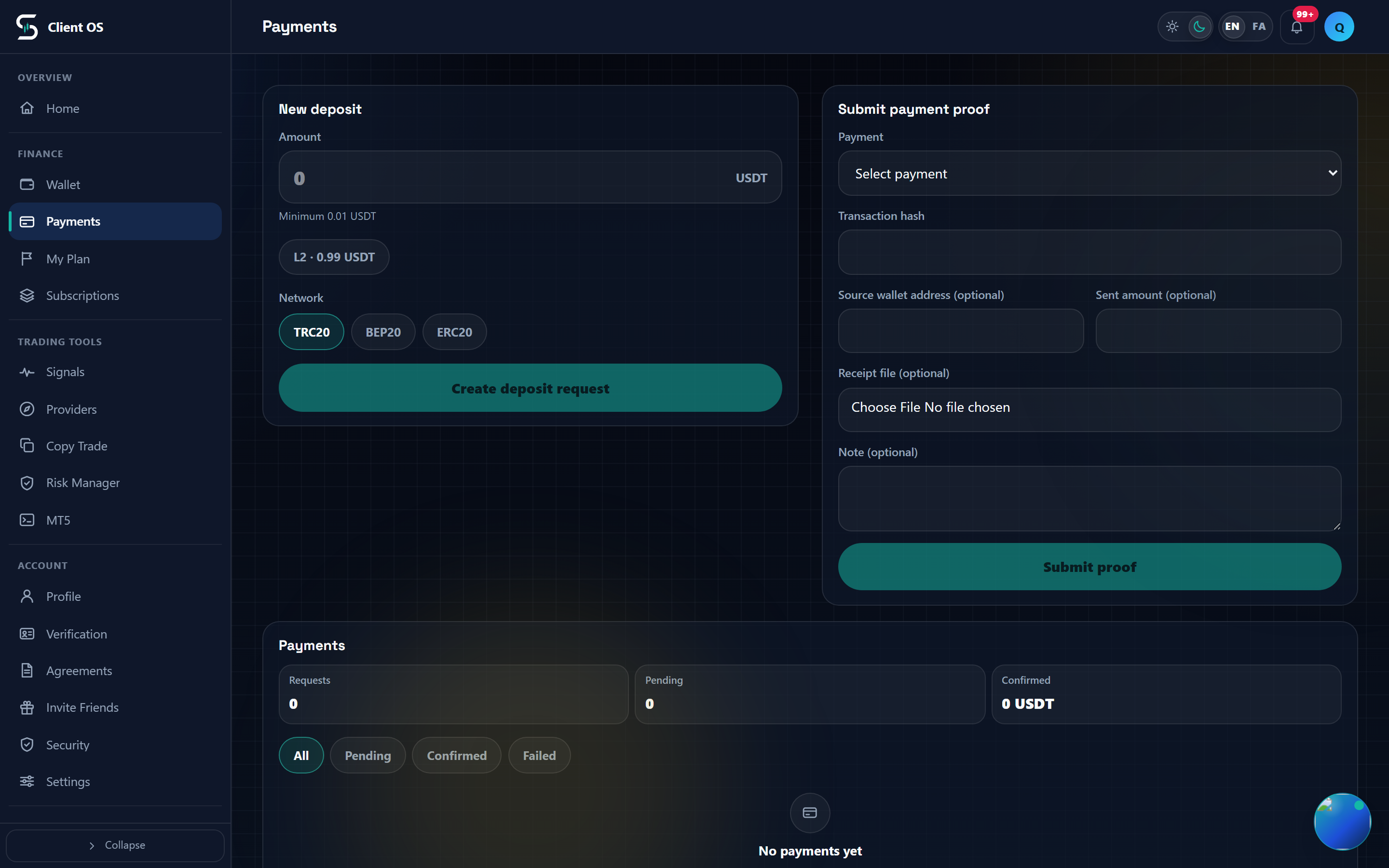
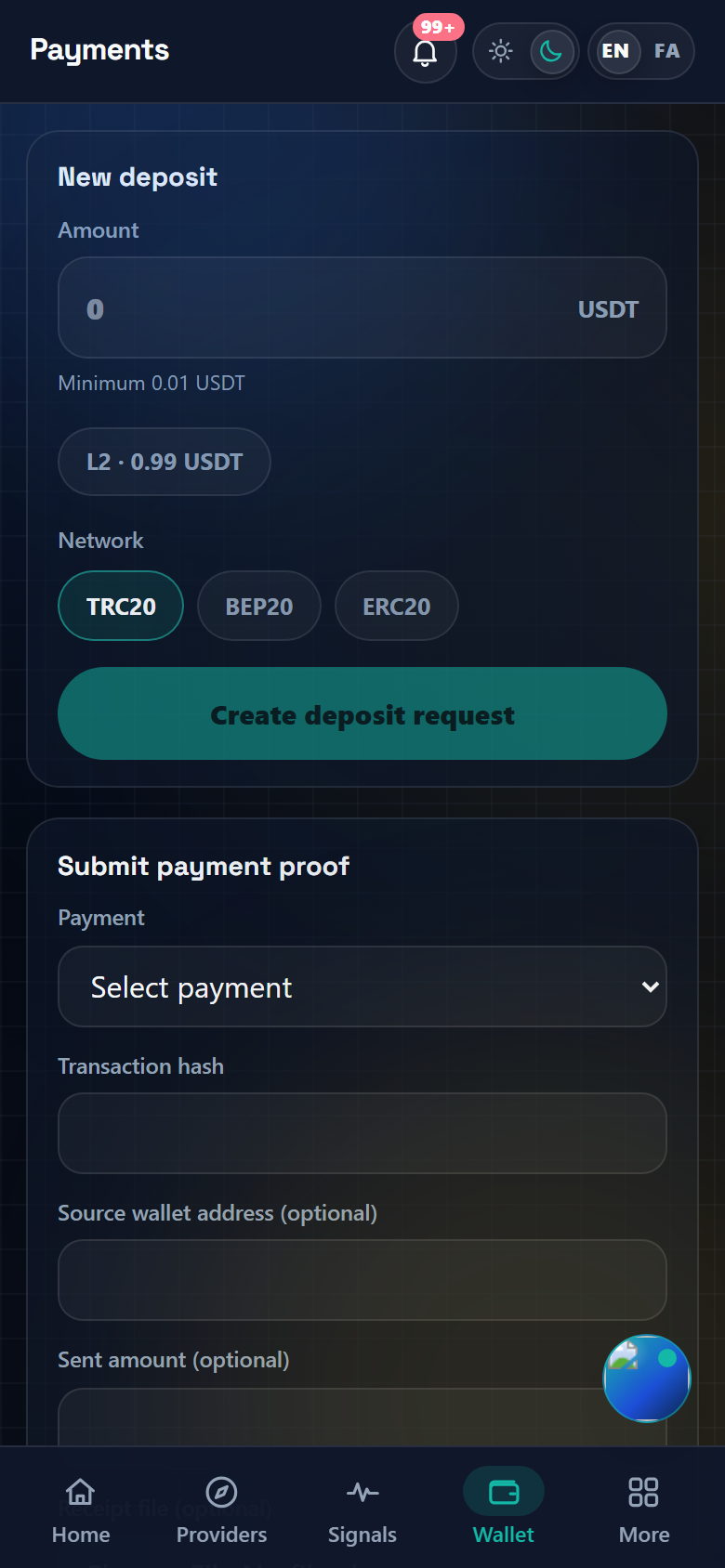
Send the exact amount to the destination address
Once the request exists, the Payment request ready card shows the exact amount, the network and the Destination wallet; take the address with the Copy button, which switches to Copied. Send that exact amount, from your own wallet, on that same network. The address belongs to that one network, and a sent amount that differs from the expected amount by more than 0.01 is flagged for the admin to check.
Submit the payment proof
In the Submit payment proof card, first choose your request from the Payment dropdown (it starts on Select payment), then paste the Transaction hash, which is required and has to be between 10 and 255 characters. The rest is optional: Source wallet address (optional), Sent amount (optional), Receipt file (optional), which takes only JPG, PNG, WebP or PDF up to 10 MB, and Note (optional) up to 500 characters. Press Submit proof; the status moves to Tx submitted and you see Payment proof submitted for review. Leaving out the source address or the receipt file will not get you rejected, but it raises a review flag the admin sees and slows things down.
The manual review and its result
Review is done by a Sigrah admin, not by an on-chain checker. The status pill walks Pending, Tx submitted, Under review and finally Confirmed, or it stops at Rejected, Expired, Failed or Cancelled; you get a notification for both confirmation and rejection. On confirmation a free deposit credits your main wallet, a plan payment activates the plan order, and a VIP or subscription payment activates the membership. The amount applied is what the admin records as Received, not necessarily the figure you typed into Sent amount (optional). On rejection, any purchase credit and main-wallet amount reserved for the related plan order is released back, and the admin's reason arrives with the notification.
Paying for a plan
For a plan, start at My Plan and then Plans: pick the level, apply a Discount code with Apply if you have one, and read the review, which shows Plan price, Purchase credit, Main wallet and Deposit needed. If credit and the main wallet cover the whole price, no transfer is involved at all and Activate plan finishes it there. Only when a shortfall remains does Continue to deposit take you to the payments page, where the Plan activation deficit card shows Plan price, Credit and Remaining; pick the network, press Create exact deposit, then submit proof as usual. Plans can only be bought on an active account, for levels 2, 3 and 4, and the remaining amount has to fit the deposit address limits, where the minimum is 1 USDT by default.
Track it in Payments
Lower on the same page, the Payments section counts Requests and Pending and totals Confirmed, with the All, Pending, Confirmed and Failed chips as filters. Tap a row, or Details in the wide table, to open Payment detail: type, network, status, amount, Received, Expires, Updated, the payment ID, the transaction hash, the destination wallet, and View receipt if you attached a file. A fresh account shows only No payments yet, and each filter renders at most the 30 newest rows.