
billing
Plans and upgrades
A Sigrah plan is your account level: level 1 is free, levels 2 to 4 are bought for a 30-day cycle. This guide covers where to read your current plan, how to select and review a higher one, and how to cover a shortfall with a deposit.
A plan on Sigrah is your account level: 1 to 4, with a separate catalogue for Subscriber and Provider accounts. Level 1 is free and never expires; levels 2, 3 and 4 are bought, and each purchase is one 30-day cycle. You have to be signed in and your account has to be active; a suspended or locked account is refused at checkout. My Plan shows where you stand today, and the plans page is where you compare and buy.
Open My Plan
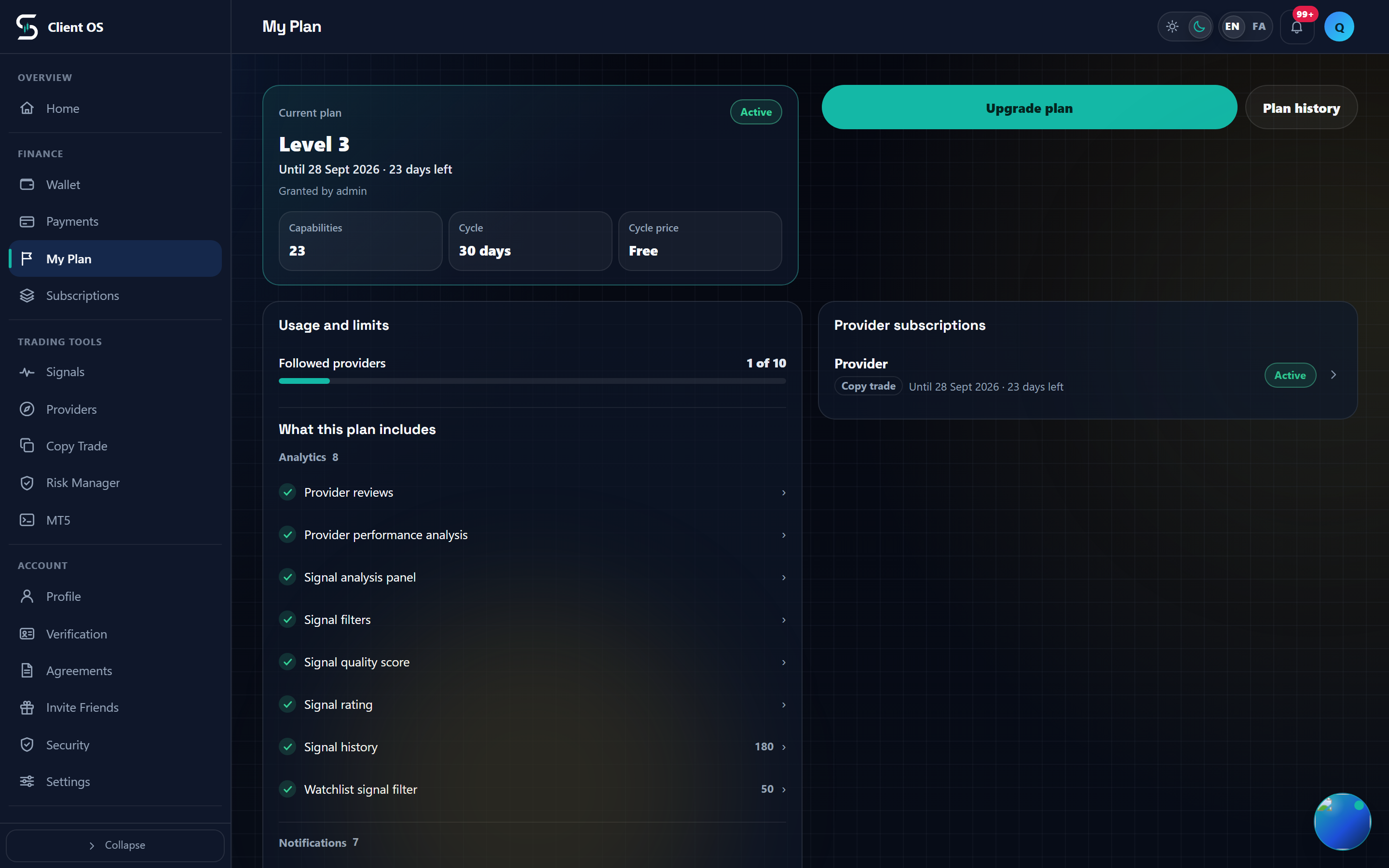
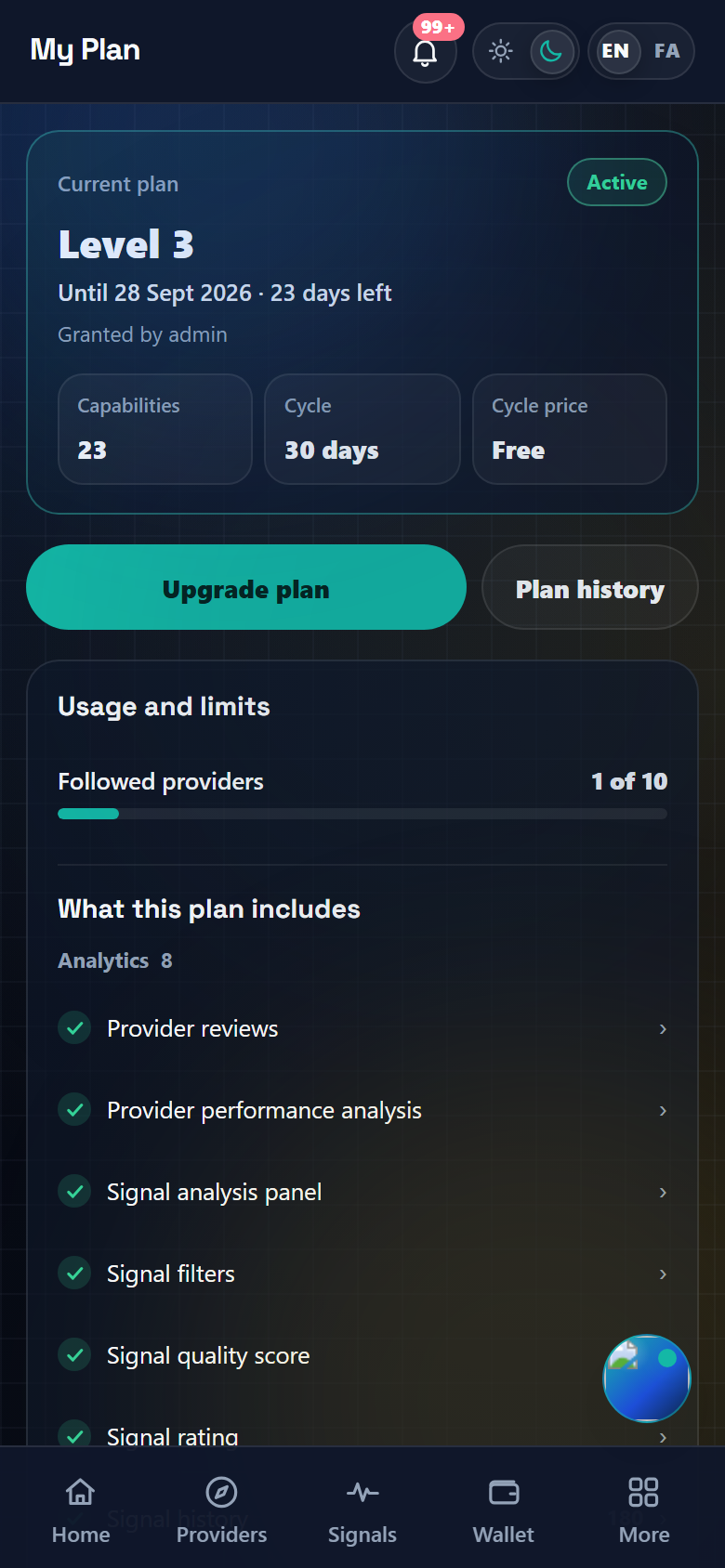
Open My Plan from the panel navigation. The card starts with the Current plan label and a status chip, then the plan name and its Level, and under that the cycle end: Until, the date, and the days left. On the free plan you get No expiry date instead. Three tiles, Capabilities, Cycle and Cycle price, sit at the bottom and close the card.
Check what the plan includes and what you have used
Usage and limits shows Followed providers on a subscriber account and Active subscribers on a provider one, and a quota with no ceiling reads Unlimited. Subscriber capacity is not something a provider sets: the panel says Subscriber capacity comes from your provider plan. Below it, What this plan includes groups the enabled capabilities with their quotas, each with an open link to the page that uses it. If the next level adds anything, More capabilities in the next plan appears at the end of the section. The Provider subscriptions panel is rendered only on subscriber accounts.
Go to the plan catalogue
The action row always carries Plan history, and next to it a primary button whose label depends on your state: View plans on the free plan, Upgrade plan below level 4, Start a new cycle on level 4. When an alert card is on screen the primary button is not rendered and the card carries its own fixed label instead: Your plan has expired with Reactivate plan; Your plan is ending soon, which only appears inside the last 7 days of the cycle, with Start a new cycle; and the at-limit card with Upgrade plan. All of them lead to the same place, the plans page.
Compare the plans and select one
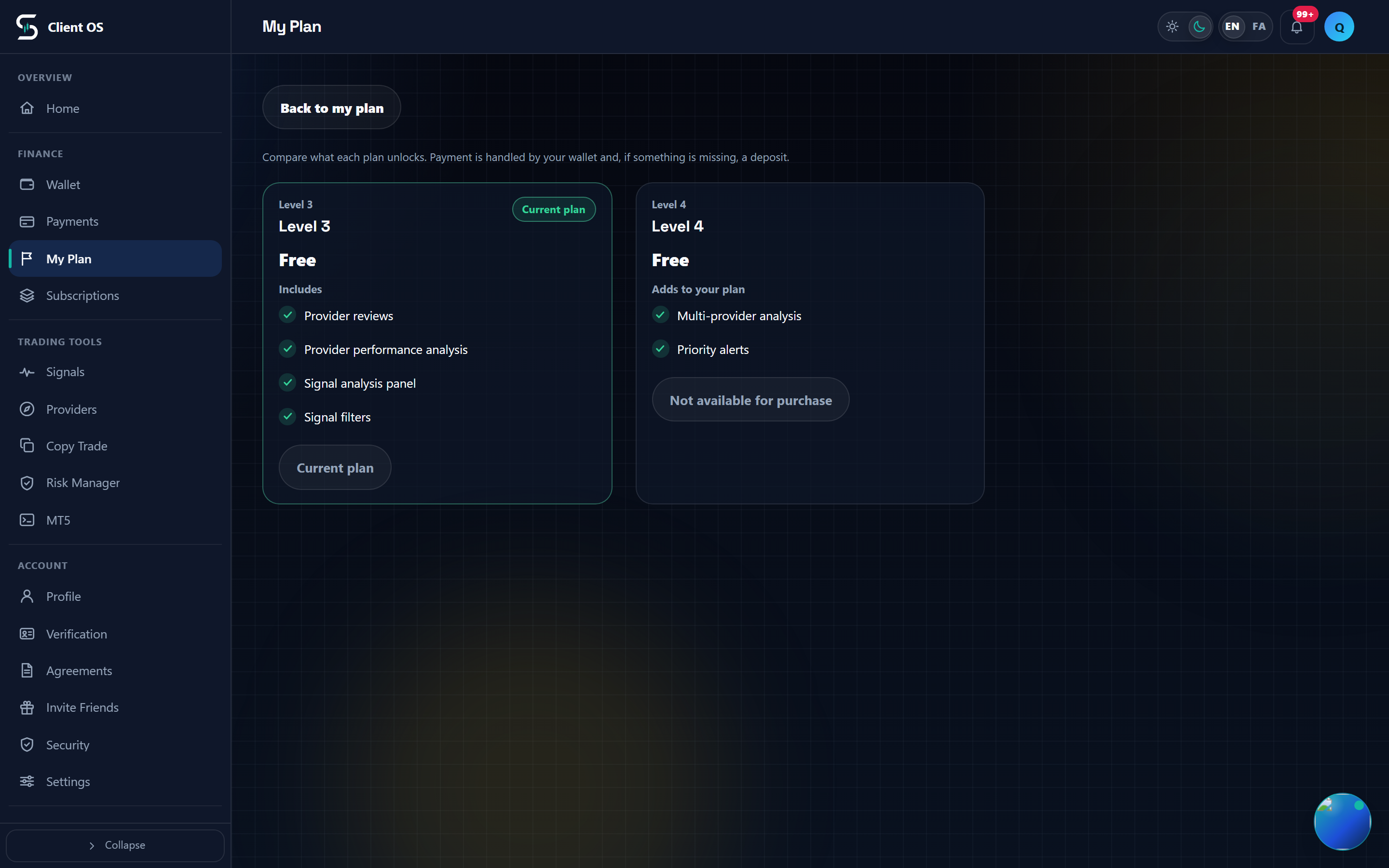
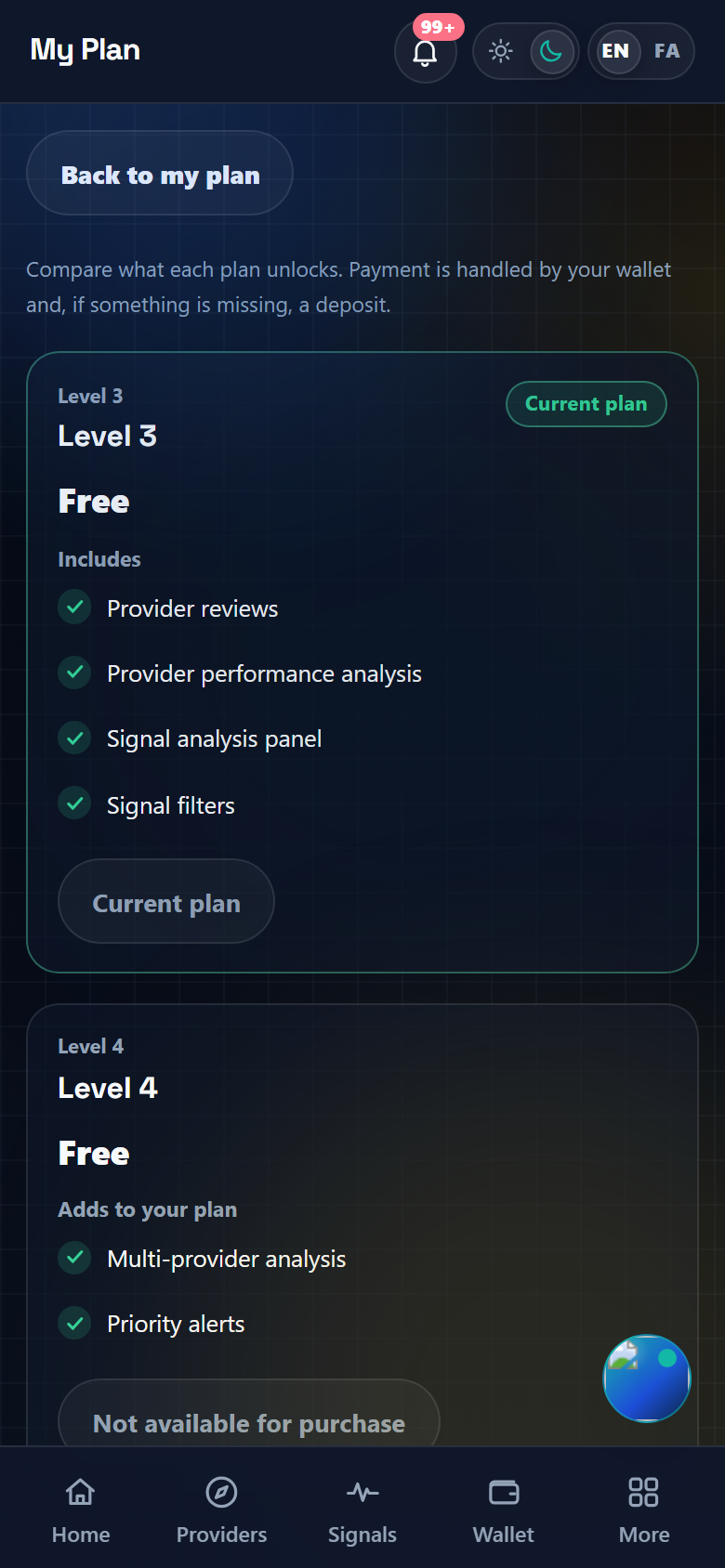
The catalogue lists your current level and the levels above it. There is no downgrade path, so lower levels are not shown at all. Your own card is marked Current plan, and a higher card lists only the difference under Adds to your plan. Press Select on the plan you want, or Start a new cycle on your own card to buy the same level again for a fresh cycle.
Review the change and apply a discount code
The review panel shows Current plan, New plan, Cycle and Takes effect: Immediately after activation. Type a code into Discount code and press Apply; Remove clears it. A code is accepted only if it and its campaign are active, the current time falls inside the campaign window, the code covers that level and your role, the order clears the code's minimum amount, and neither the overall nor the per-user usage cap has been reached. The breakdown then reads Plan price, Discount, Payable, Purchase credit, Main wallet and Deposit needed: purchase credit is spent oldest first, then the main wallet, and only the remainder becomes a deposit. Plan price here can differ from the figure on the catalogue card, because the card shows the base price while the review also applies your account's own pricing multiplier.
Activate when your balances cover it
If Deposit needed is zero the button reads Activate plan. Pressing it takes the amount from your purchase credit and main wallet and activates the level in the same step: you get the message Your plan is active, and the page reloads your plan. If it does not go through you get Plan activation did not complete, and Cancel closes the review.
Cover the shortfall with a deposit
If a shortfall remains the button becomes Continue to deposit and takes you to Payments with the plan order attached. Under Plan activation deficit, Network is mandatory (TRC20, BEP20 or ERC20), that network needs an active deposit address, and the remaining amount has to fall between that address's minimum and maximum deposit, or the order is not created. Press Create exact deposit, send the shown amount to the Destination wallet, then enter the Transaction hash and press Submit proof to get Payment proof submitted for review.
Confirm the new plan and check its history
Once activation goes through, My Plan should show the new level, an active status and a new Until date. Plan history opens the subscriptions page, where every event is listed as a Purchase or an Admin activation with its price, credit, wallet and deposit split, under the Activated, Awaiting and Ended filters. An order that is still unpaid shows Pay before and a Complete payment button. When a paid cycle ends, access drops back to the free level 1 and the capabilities above it stop working until you start a new cycle.