
notifications
Connect the Telegram bot
The Telegram connection lives in the Telegram connection card on the Settings page: save your username, generate a one-time command valid for 10 minutes, and send it to the bot in a private chat. There is no field for a numeric Telegram ID; the bot records the chat id when it reads your code.
By default Sigrah notifications only appear in the inbox inside the panel. If you also want them in Telegram, you connect your Telegram account to your Sigrah account once. All of it happens on the Settings page, in the Telegram connection card. There is no field for a numeric Telegram ID; the chat id is recorded by the bot when it reads your code.
Open the Telegram connection card
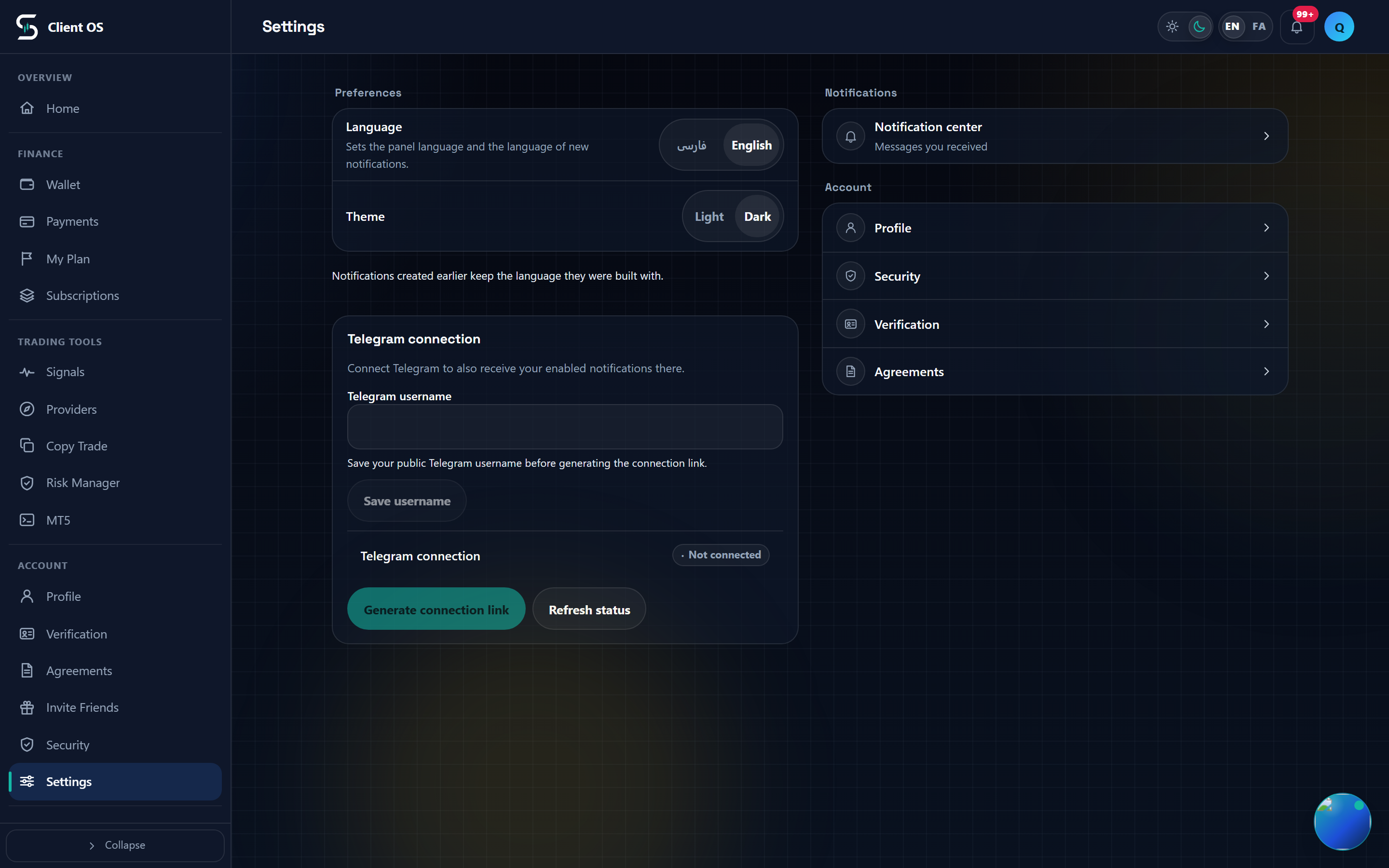
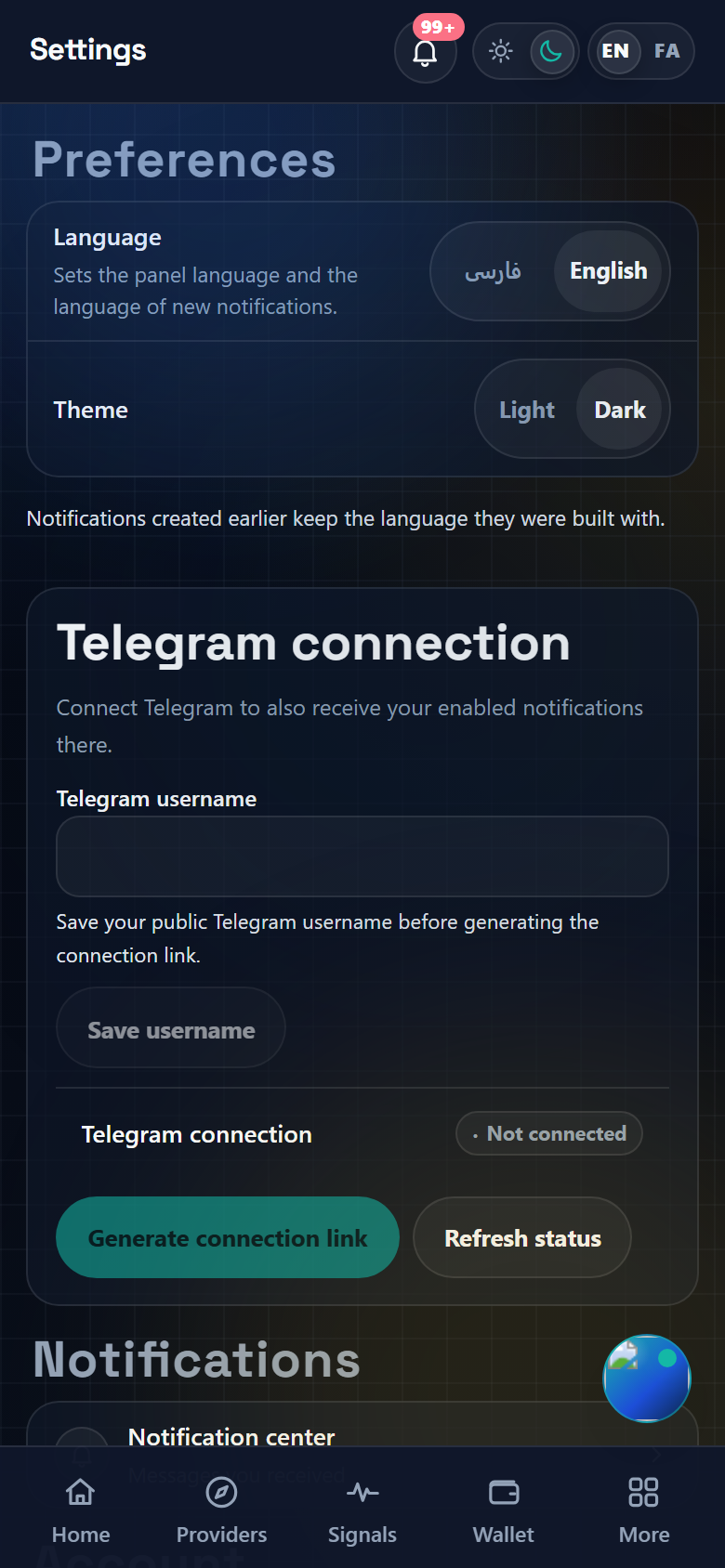
Open Settings from the panel menu. The card titled Telegram connection sits in the first column, under Preferences, with the description Connect Telegram to also receive your enabled notifications there. From Profile you can instead tap the Manage Telegram connection row, which takes you straight to the same card. Inside the card you get a username field, a status row showing Not connected, and two buttons: Generate connection link and Refresh status.
Save your Telegram username
Type your public Telegram username into the Telegram username field; the help line below it reads Save your public Telegram username before generating the connection link. A leading @ is removed and capitals are lower-cased, so @Ali_Ahmadi and ali_ahmadi count as the same name. The Save username button stays disabled, not clickable at all, until the value is 5 to 32 English letters, numbers or underscores, and it goes back to disabled once saved, because the field then matches the stored value. When the save goes through you get Telegram username saved. If your Telegram account has no public username, set one in Telegram first.
Generate the one-time command
Press Generate connection link. The button is only active while the value in the field is exactly the username you saved; if you edited it and did not save, the button stays greyed out and no message appears. After it runs, a One-time command block shows a /start command carrying your own code, a Copy button and a Valid until line. If the platform knows the bot's username, an Open the Telegram bot button appears next to Copy; if it does not, you only get the command text and Copy, and you open the bot chat yourself. Generation also fails if an administrator has switched the Telegram channel off or no bot token is configured.
Send the command in a private chat with the bot
Tap Open the Telegram bot, or press Copy and send the command exactly as it is to the Sigrah bot, as the help line in that block says: Use the button above, or send this exact command to the bot in a private chat. Do not edit or shorten the code; it has to arrive whole. Once the bot accepts it, it replies to confirm the connection.
Come back and confirm the status
While the card is waiting it shows the chip Waiting for Telegram and the hint Finish in Telegram, then come back to this page. The page does not check on a timer: it re-reads the status once when you return to the panel tab, or whenever you press Refresh status. On success the chip becomes Connected and the connection time appears with the date and time under the same row. If more than 10 minutes passed you get This code has expired. Generate a new one. and you start again from the generate button.
Choose what the bot sends you
Connecting alone is not enough. Open Notifications and press Channels to reach the Notification channels page. The Telegram card has a switch for the whole channel, a Sent today counter, and an Events on this channel section that expands to list events under the groups Signals, Finance, Plan, MT5, Security, Support and System. In the page's own words, an event you switch off will not be sent through this channel. Telegram signal delivery also depends on your level quota: 5 per level cycle at level 1, 150 at level 2, 1500 at level 3, and no numeric cap at level 4 under fair use.
Disconnecting, and the bot's own commands
While you are connected the card replaces Generate connection link with a red Disconnect button; pressing it shows Disconnecting… and then Telegram disconnected. with the chip Not connected. The username field and its save button are locked while the account is connected, so changing your username means disconnecting first. Connecting again means generating a fresh code; the old one cannot be reused. In the chat itself the bot understands these commands:
- /start with your code: binds this chat to your account
- /status: says which Sigrah account this chat is bound to
- /settings: points you back to this panel page
- /help: the list of commands
- /disconnect: unbinds this chat
Once connected, any notification whose Telegram channel is on arrives both in the Notifications inbox and in the bot chat. To check the result, look at the card status in Settings and the Sent today counter on Notification channels. If you block the bot in Telegram the platform records the connection as blocked and stops sending until you unblock it and connect again from the same place.